Creating the event is only the start. When something changes, Domo lets you edit it, cancel it or take the calendar as a PDF.
Open and manage an event
Click an event on the calendar to see its details. There you can:
- Record attendance (or View attendance, if you already took it). The details show "Attendance recorded · X of Y" and you can See absentees.
- In the menu (the three dots): Edit or Cancel event.
Cancel (without losing anything)
When you Cancel event, Domo makes it clear: "The event will be marked as canceled. Registered people and attendance records are kept."
In other words, canceling doesn't delete the attendance you already recorded. If you really want to remove it, once canceled the Delete option appears.
Edit an event in a series
If the event is part of a recurring series, when you edit it you'll see a notice and the option Edit the whole series →. And if you delete it, you choose the scope:
- Only this day
- This and all following
- The whole series
Find and export
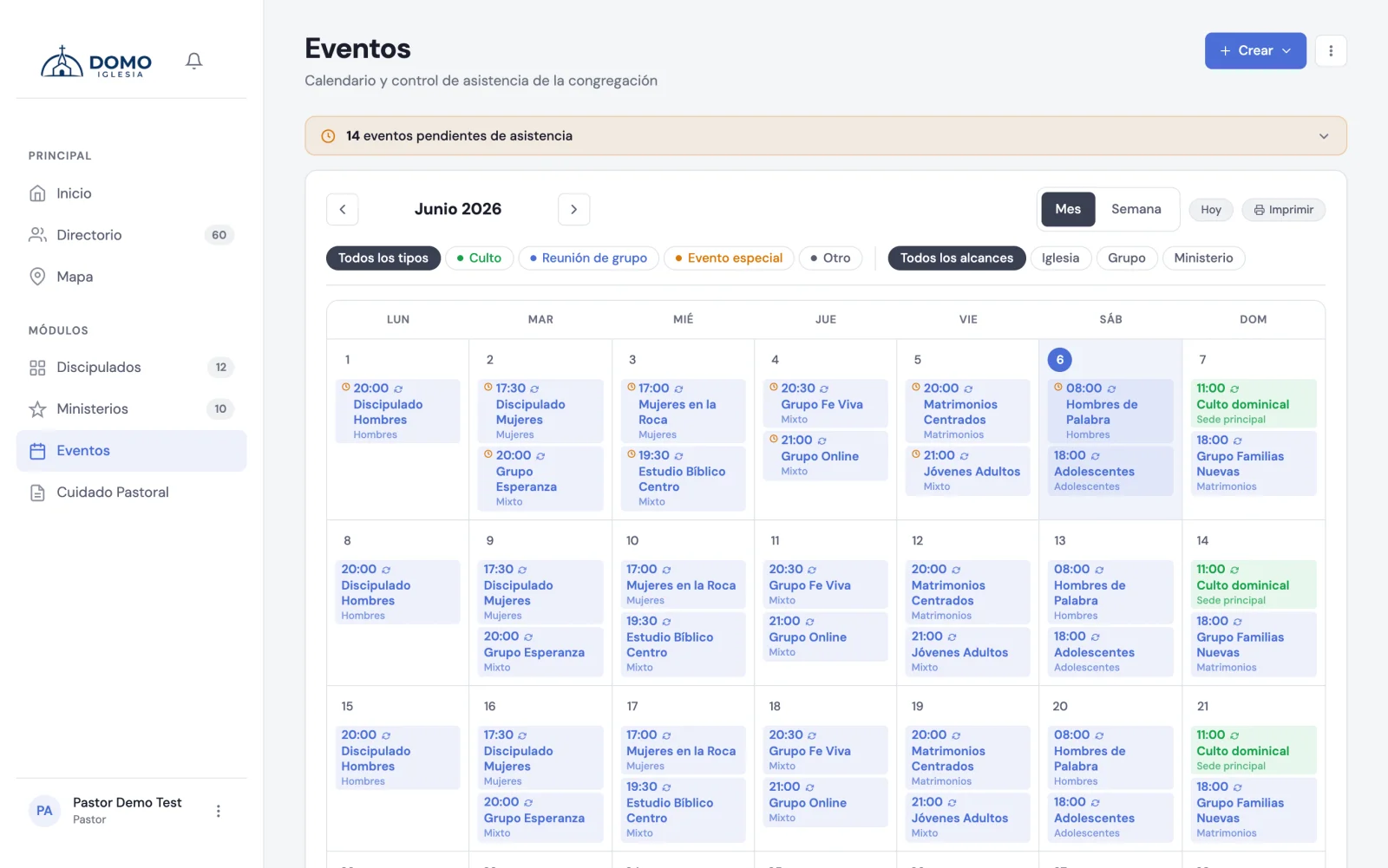
On the calendar you can filter by All types and All scopes (Church, Group, Ministry), toggle between Month and Week, and see the Upcoming events and Past events blocks.
To take the month with you, click Export PDF: you get the calendar ready to print or share.